
An introduction into Apache Kafka - learn about the motivations behind it, some of the concepts like brokers, topics, and partitions, as well as try a little hands-on.
I recently started learning to use Kafka. It was first created by LinkedIn and is now an open source project mainly maintained by Confluent. I strongly recommend Stéphane Maarek’s course, “Apache Kafka Series - Learn Apache Kafka for Beginners”. This article essentially summarizes what I learned taking that course.
I wrote this for other beginners to get an introduction into Kafka. I’ve included a hands-on because I’ve always found doing to be the most effective way of learning.
All demonstrations will make use of the command line interface (CLI). If you prefer a user interface, there is KafkaTool, amongst many others, but I will not be covering how to use these.
Introduction to Kafka
Motivation
Old system architectures often get messy. For x source systems and y target systems, we would need to write x*y integrations! Each of these integrations come with their fair share of concerns:
- How is the data transported? (protocols) - TCP, HTTP, REST, FTP, JDBC, etc.
- How is the data parsed? (data format) - Binary, CSV, JSON, Avro, etc.
- How is the data shaped and how might it change? (data schema & evolution)
Furthermore, each time you connect a source system to a target system, there is an increased load in connections.
Apache Kafka helps us by decoupling data streams and systems. Kafka is a transport mechanism that basically helps you move your data very quickly at scale.
Why use Apache Kafka?
- Distributed, resilient architecture, fault tolerant
- Horizontally scalable - 100s of brokers, millions of messages per second
- Highly performant - the latency to exchange data from one system to another is usually <10ms (pretty much real-time)
- Widely used - 2000+ firms, 35% of Fortune 500
- Netflix uses Kafka to give real-time recommendations as you watch shows.
- Uber uses Kafka to gather user, taxi, and trip data in real-time to compute and forecast demand, as well as compute surge pricing in real-time.
- LinkedIn uses Kafka to prevent spam and collect user interactions to make better connection recommendations in real-time.
Use Cases
- Messaging System
- Activity Tracking
- Gathering metrics from many different locations
- Gathering application logs
- Stream processing (e.g. Kafka Streams API or Spark)
- Decoupling of system dependencies to reduce the load on databases or systems
- Big data integrations (e.g. Spark, Flink, Storm, Hadoop)
Kafka Theory
Topics, Partitions, and Offsets
Topics represent a particular stream of data. You can have as many topics as you want, each identified by its name (usually the data stream). You can think of it as a table in a database.
Topics are split in partitions. Each partition is ordered and each each message within a partition gets an incremental id, called an offset.
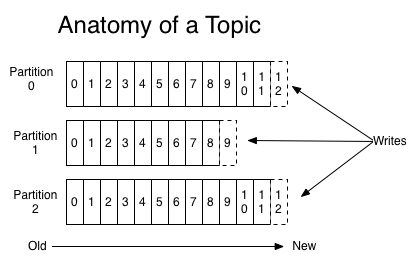
Offsets only have meaning within their partition. For instance, offset 3 in partition 0 doesn’t represent the same data as offset 3 in partition 1. Further, order is guaranteed only within a partition, not across partitions. The data in a topic expires eventually and by default, it’s kept only for one week.
The data is also immutable. Once the message/data is written to a partition, it cannot be changed.
Example: Truck GPS
Let’s say we have a make-believe logistics and courier service provider, SamuraiTruck. SamuraiTruck has a fleet of trucks and each truck reports its GPS position to Kafka. They can have a topic trucks_gps with 10 partitions that contains the position of all trucks. Each truck will send a message to Kafka every 20 seconds, each message will contain the truck ID and the truck position (latitude and longitude).
Brokers and Topics
Topic Replication
Producers and Message Keys
Consumers and Consumer Groups
Consumer Offsets and Delivery Semantics
Kafka Broker Discovery
Zookeeper
Kafka Guarantees
Hands-on
Prerequisites
Make sure you have Java 8 installed.
Setup
Linux/Mac (Unix system) is preferred. As much as possible, avoid Windows.
Binary download
Download the Kafka binary from https://kafka.apache.org/downloads. I used Kafka 2.6.0 for Scala 2.13 (don’t worry if the versions you see are more recent - the Kafka core should stay largely the same).
# In your root directory
tar -xvf kafka_2.13-2.6.0.tgz
cd kafka_2.13-2.6.0
Add Kafka to your path to access Kafka scripts from anywhere.
Alternatively, install with Homebrew (only for Macs)
brew install kafka
NOTE: I’m using a Mac, so whenever I use a Kafka script, it presents as *.sh. Yours may be *.bat if you’re on Windows, or may not have a visible file extension if you installed using Homebrew.
Start the servers
Both the Zookeeper and Kafka servers currently save their logs to a temporary folder. If you want this data to persist, create new directories in your kafka folder and configure the respective properties to point to those new directories.
...
dataDir=/
...
...
logs=/
...
Start Zookeeper
zookeeper-server-start.sh config/zookeeper.properties
If things work correctly, Zookeeper should bind to port 2181. If you see and error stating that 2181 is already in use, you need to find the process that is using 2181 and kill it. Then rerun the command. Keep this terminal window open for Zookeeper to keep running.
Start Kafka
Open a new terminal. The Kafka port is 9092.
kafka-server-start.sh config/server.properties
Command Line Interface (CLI) Introduction
Create a topic
As we learnt previously, we have to decide on the number of partitions when we first create a topic. And since we’ve only created one broker and we cannot have a replication factor higher than the number of brokers, we need to set replication factor to 1 for now. Otherwise, you will be met with errors.
kafka-topics.sh --zookeeper 127.0.0.1:2181 --topic first_topic --create --partitions 3 --replication-factor 1
NOTE: ‘127.0.0.1’ and ‘localhost’ are interchangeable.
List topics
kafka-topics.sh --zookeeper localhost:2181 --list
## first_topic
Describe topics
This command will show you a table displaying the partitions, replication factor, and any additional configurations (none for now).
Leader: 0 refers to broker id 0 as the leader. (You can see brokerId=0 in your Kafka server window.)
Since we have replication factor 1, Replicas and Isr will both be broker id 0.
kafka-topics.sh --zookeeper localhost:2181 --topic first_topic --describe
Now, let’s create a second topic.
kafka-topics.sh --zookeeper localhost:2181 --topic second_topic --create --partitions 6 --replication-factor 1
Listing your topics should now show two topics.
Delete a topic
WARNING: Do not do this step if you’re a Windows user, as there is a long-standing bug (KAFKA-1194) that causes Kafka to crash if you delete topics. The only way to recover is to manually delete the folders where you pointed your Kafka logs in config/server.properties.
kafka-topics.sh --zookeeper localhost:2181 --topic second_topic --delete
You might see a message saying that the topic has been marked for deletion. When you list your topics again, you will find only one topic remaining. This is because delete.topic.enable is set to true by default.
Kafka Console Producer
kafka-console-producer has two required arguments: --broker-list and topic
kafka-console-producer.sh --broker-list localhost:9092 --topic first_topic
If it works correctly, you will see a “greater than” symbol > where you can start writing messages for the producer:
>Hello Jane
>Awesome article!
>Learning Kafka
>with Stephane Maarek
Ctrl+C to stop.
And again with acks
kafka-console-producer.sh --broker-list localhost:9092 --topic first_topic --producer-property acks=all
>Some message that is acked
>just for fun
If we try doing this with a topic we haven’t created, we get a warning that there is no leader available.
kafka-console-producer.sh --broker-list localhost:9092 --topic new_topic
>Hey this topic doesn't exist!
[2020-08-13 20:24:21,112] WARN [Producer clientId=console-producer] Error while fetching metadata with correlation id 3 : {new_topic=LEADER_NOT_AVAILABLE} (org.apache.kafka.clients.NetworkClient)
>
Send another message.
>Another message
This time, we don’t get a warning because Kafka actually created the topic for us, but it took some time for Zookeeper to elect a leader amongst the broker(s). See for yourself:
kafka-topics.sh --zookeeper localhost:2181 --list
...
kafka-topics.sh --zookeeper localhost:2181 --topic new_topic --describe
We realise new_topic was created with the default settings of 1 partition and 1 replication factor. Usually, we want more partitions and higher replication factors, so make sure you create a topic to your specifications before producing for it.
You can modify the default number of partitions in config/server.properties. Make sure to stop and restart Zookeeper for the change take effect.
Kafka Console Consumer
Now let’s listen for the messages we sent. Don’t worry, --bootstrap-server is just the same as --broker-list.
kafka-console-consumer.sh --bootstrap-server localhost:9092 --topic first_topic
Got nothing? That’s expected, because Kafka consumers only consume new messages, not all messages in the topic. Consumers only start listening when you launch them.
Open another window to start producing again with the same command above.
kafka-console-producer.sh --broker-list localhost:9092 --topic first_topic
>Whatever message you want
You should now see the exact same message appear in your consumer window. Cool or what? Kafka consumers listen for new messages by default because it was designed for live streaming. If you really want/need to read all the messages, just add the --from-beginning flag. Try it!
IMPORTANT: Notice that the messages are completely in order? Recall that we learned previously that order is maintained within partitions but not across partitions and our topic had 3 partitions.
Kafka Consumers in a Group
Open a few new terminal tabs (maybe 2-3) and run the following command in all of them.
kafka-console-consumer.sh --bootstrap-server localhost:9092 --topic first_topic --group my-first-application
Produce more messages and watch them get distributed across the console consumers! Shut down any consumer and continue producing more messages. You will find that the messages are automatically rebalanced across the consumers and each consumer reads from a different partition.
Now, let’s try a new consumer group and read from the beginning.
kafka-console-consumer.sh --bootstrap-server localhost:9092 --topic first_topic --group my-second-application --from-beginning
^CProcessed a total of 19 messages
We see all the messages that have ever been sent to the topic first_topic.
Run the command again. Even though we specified to read from the beginning, we no longer see any of the messages. This is because the offsets have been committed in Kafka. Consumer group my-second-application has read 19 number of messages (or whatever number of messages you produced for first_topic) and this number is where the consumer starts reading from the second time. The --from-beginning is thus disregarded.
Stop the consumer, produce a few more messages, then start the consumer again kafka-console-consumer.sh --bootstrap-server localhost:9092 --topic first_topic --group my-second-application. The consumer group my-second-application reads the messages you just produced!
Kafka Consumer Groups
According to the documentation, the kafka-consumer-groups command allows us to:
- List all consumer groups
- Describe a consumer group
- Delete consumer group info
- Reset consumer group offsets
Currently, I’m not aware of any command that allows us to directly list all consumer groups filtered for a specific topic. There are some work arounds out there, but none seem very efficient. For this example, we have only been listening for one topic, so we’ll just use the command for listing allconsumer groups.
kafka-consumer-groups.sh --bootstrap-server localhost:9092 --list
If you know a better way, please let me know!
Describing consumer group my-second-application, we see that CURRENT-OFFSET is the same as LOG-END-OFFSET. Since we don’t have any consumers open right now, consumer group my-second-application has no active members.
kafka-consumer-groups.sh --bootstrap-server localhost:9092 --describe --group my-second-application
The same cannot be said of consumer group my-first-application. Notice there is LAG between CURRENT-OFFSET and LOG-END-OFFSET.
kafka-consumer-groups.sh --bootstrap-server localhost:9092 --describe --group my-first-application
my-first-application hasn’t read the messages you last produced. Let my-first-application catch up, and it will be on par with my-second-application.
kafka-console-consumer.sh --bootstrap-server localhost:9092 --topic first_topic --group my-first-application
...
kafka-consumer-groups.sh --bootstrap-server localhost:9092 --describe --group my-first-application
Resetting Offsets
We may have a use case where we want to replay the data. That’s where resetting offsets comes in handy. The flag --reset-offsets allows us to do this. We have to specify where the consumer group should start reading from instead: --to-datetime, --by-period, --to-earliest, --to-latest, --shift-by, --from-file, and --to-current.
For this example, we will make use of --to-earliest to start from the beginning again, but feel free to experiment with the other options. The --execute flag is necessary and we also need to specify the scope of topics we want to reset.
kafka-consumer-groups.sh --bootstrap-server localhost:9092 --group my-first-application --reset-offsets --to-earliest --execute --topic first_topic
NEW-OFFSET shows 0. Now if we restart our consumer (you should be familiar with the commands by now!), we should see all the messages from the beginning again.
Let’s try another one - shift by 2 backwards - and see what happens.
kafka-consumer-groups.sh --bootstrap-server localhost:9092 --group my-first-application --reset-offsets --shift-by -2 --execute --topic first_topic
Now the offsets for each of our partitions in my-first-application have been reset to the last second message.
NOTE: --shift-by 2 would have shifted us forwards by 2, which is not what we wanted.
Conclusion
- What we have covered so far
- What we will cover in the next article